 Cocoatech
Features
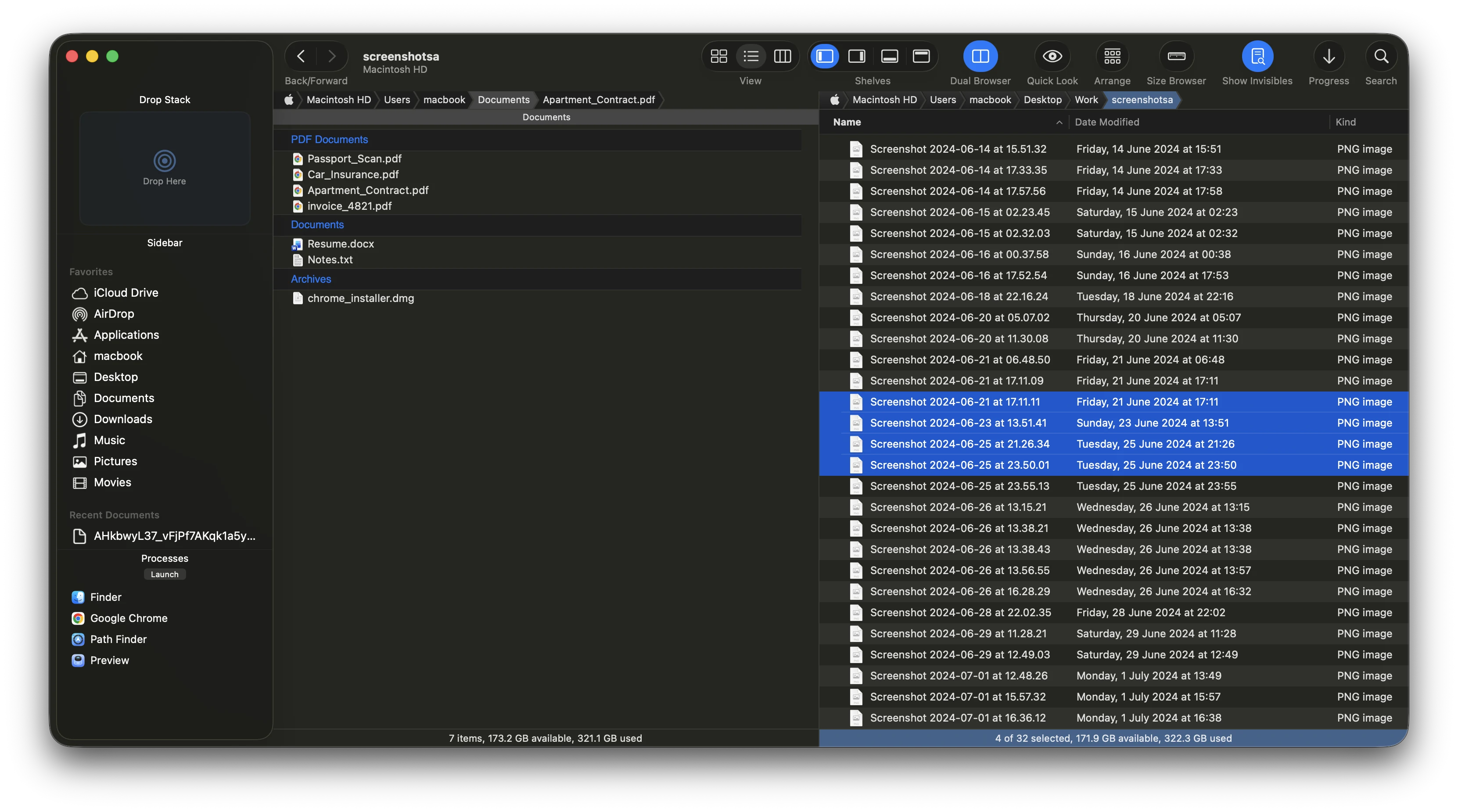
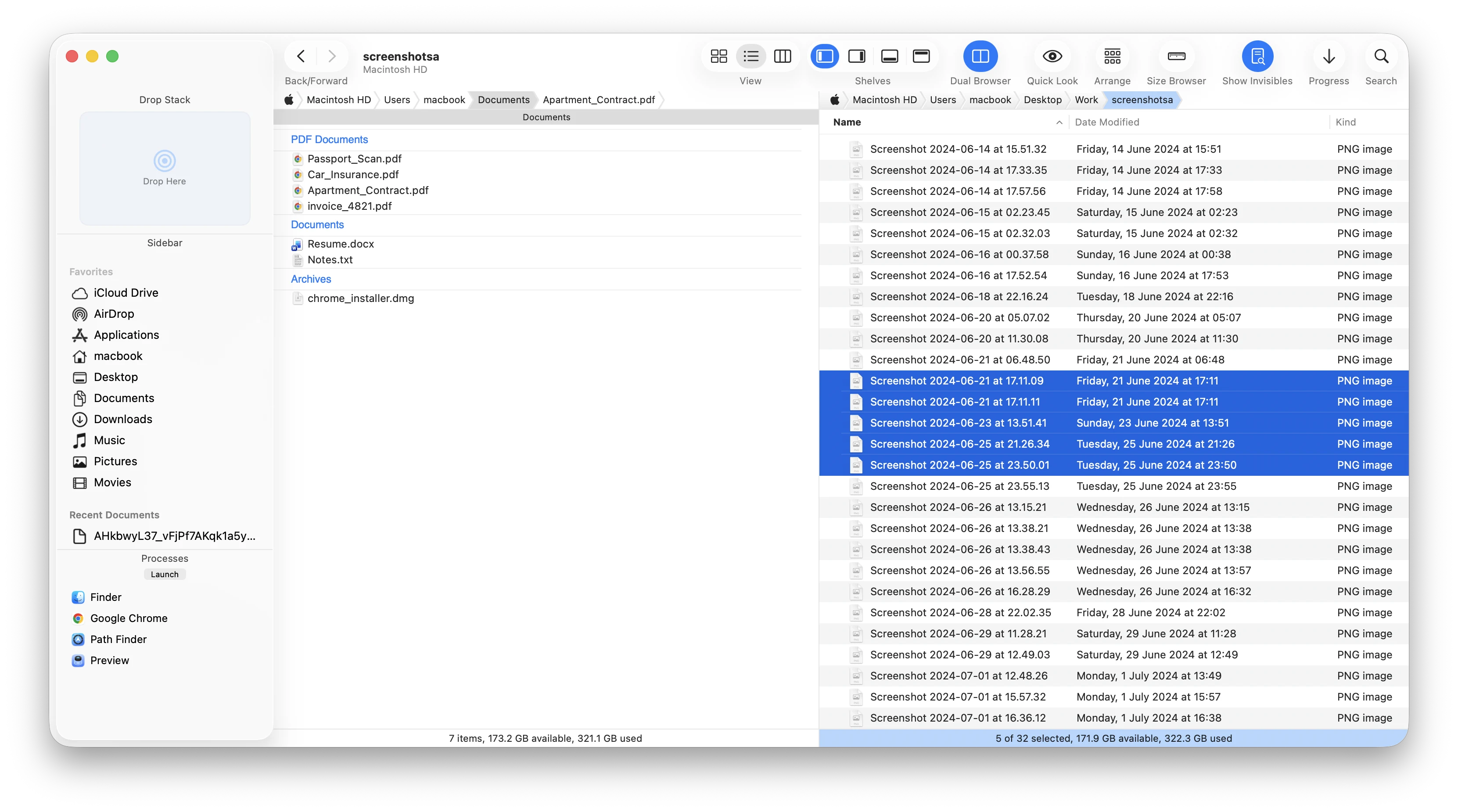
Dual Pane
Leave window clutter behind.
Too many windows open? Keep two folders visible side by side, then copy or move files directly between them.
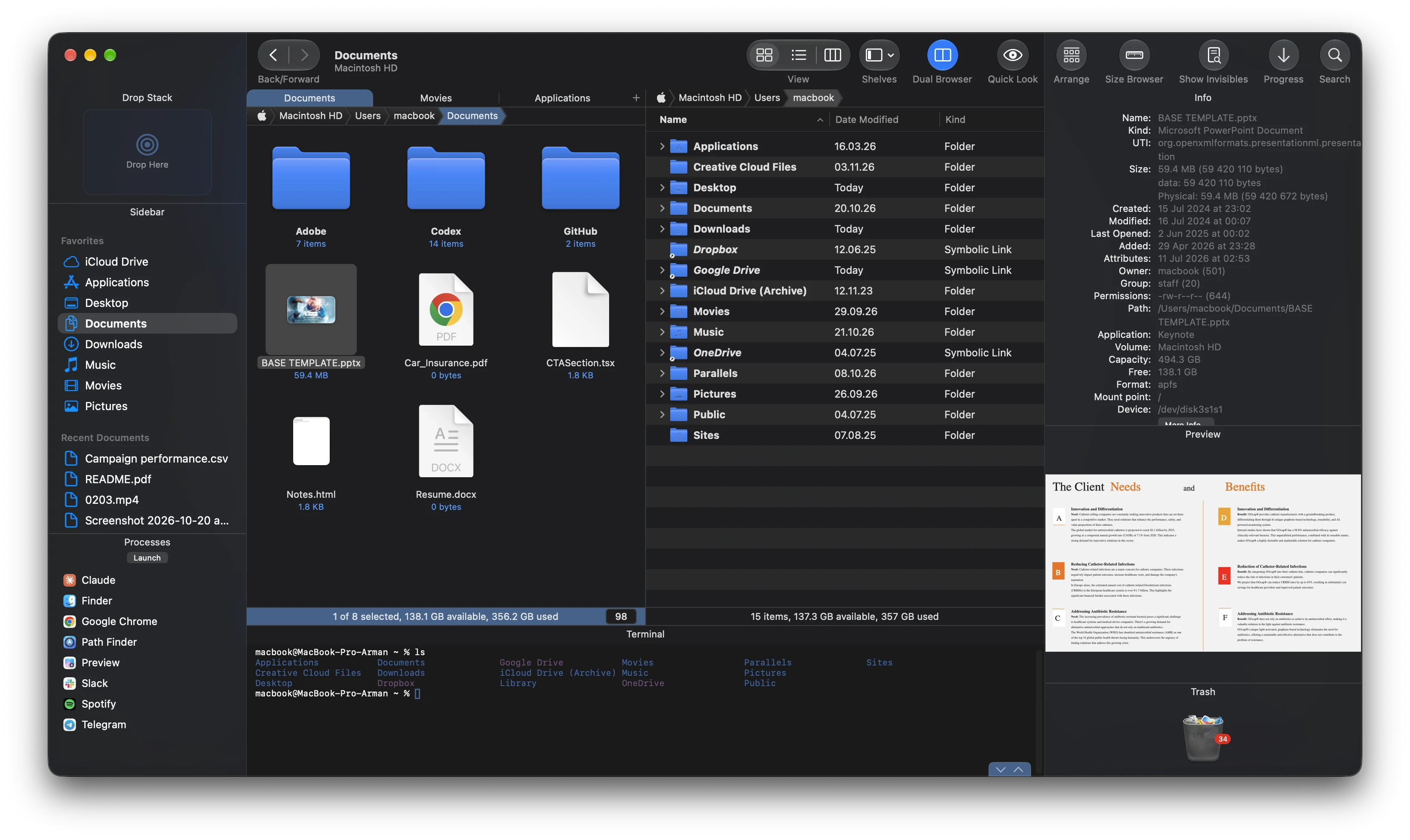
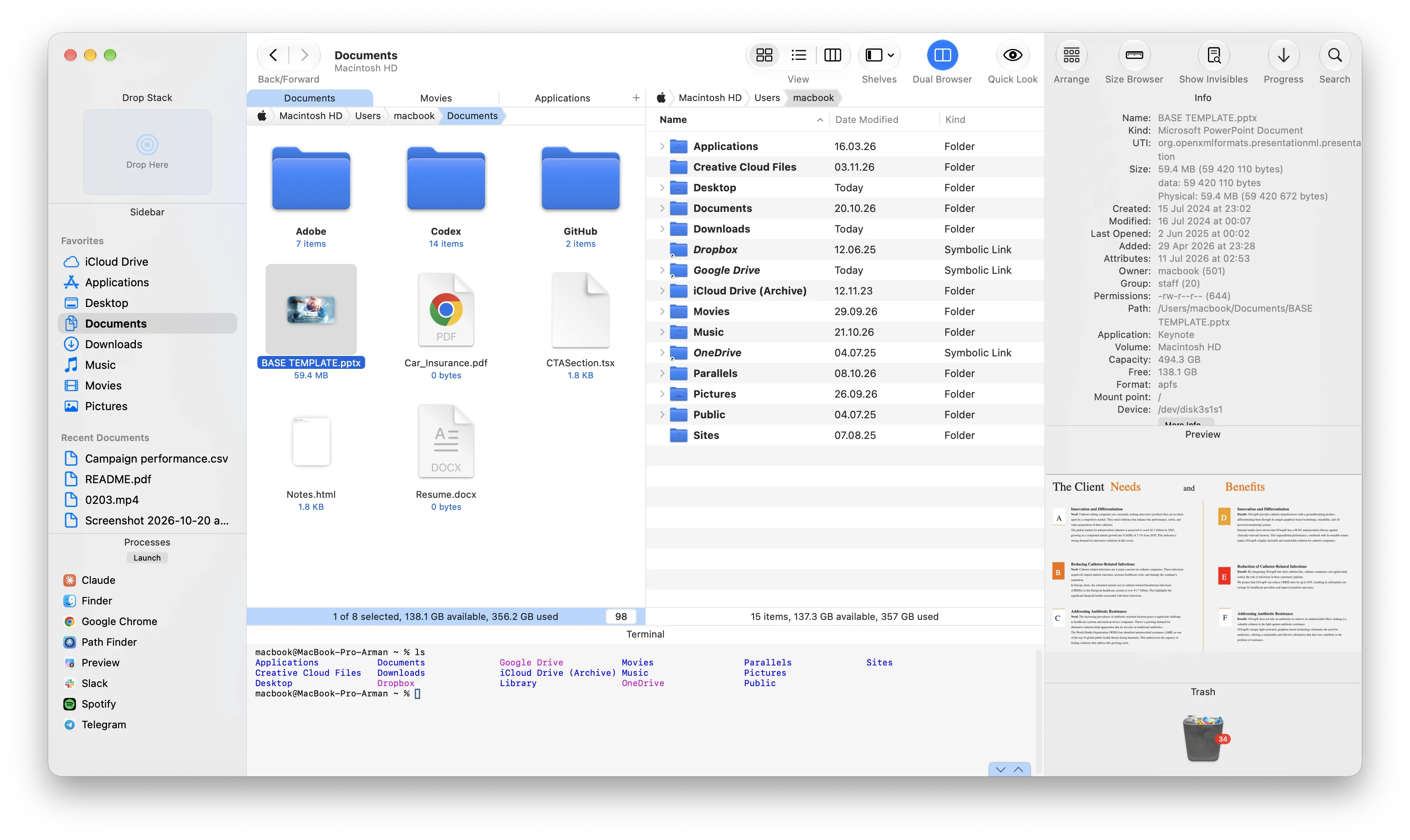
Drop Stack
Collect files to move them together.
Files scattered across folders? Add files from different folders to a temporary stack, then copy or move the whole group in one step.
Advanced File and Folder Operations
Work with groups of files at once.
Working through files one by one? Find files by name, extension or other criteria, select the group, and make the change you need across all of them.
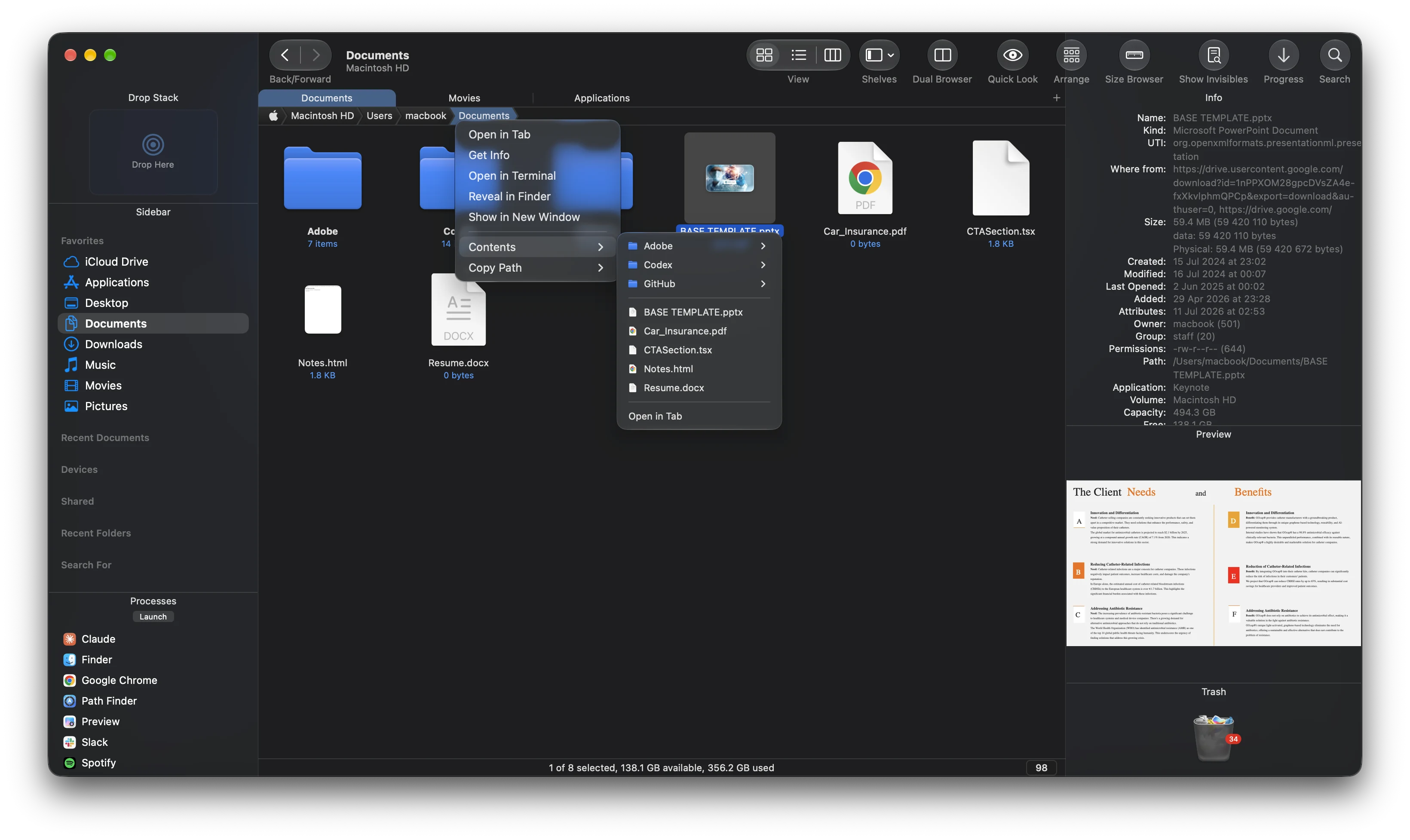
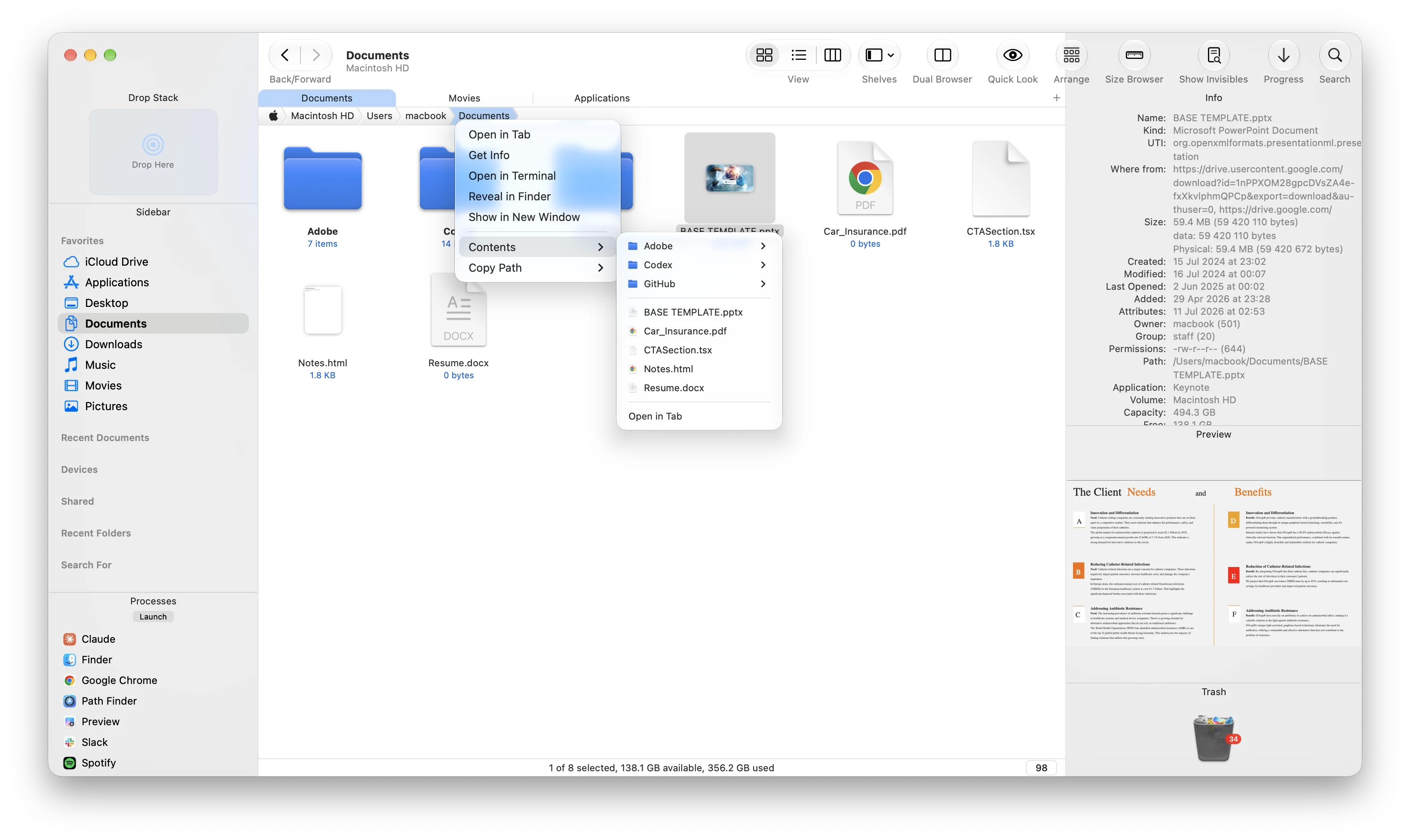
Bookmarks · Tab Presets · Path Navigator
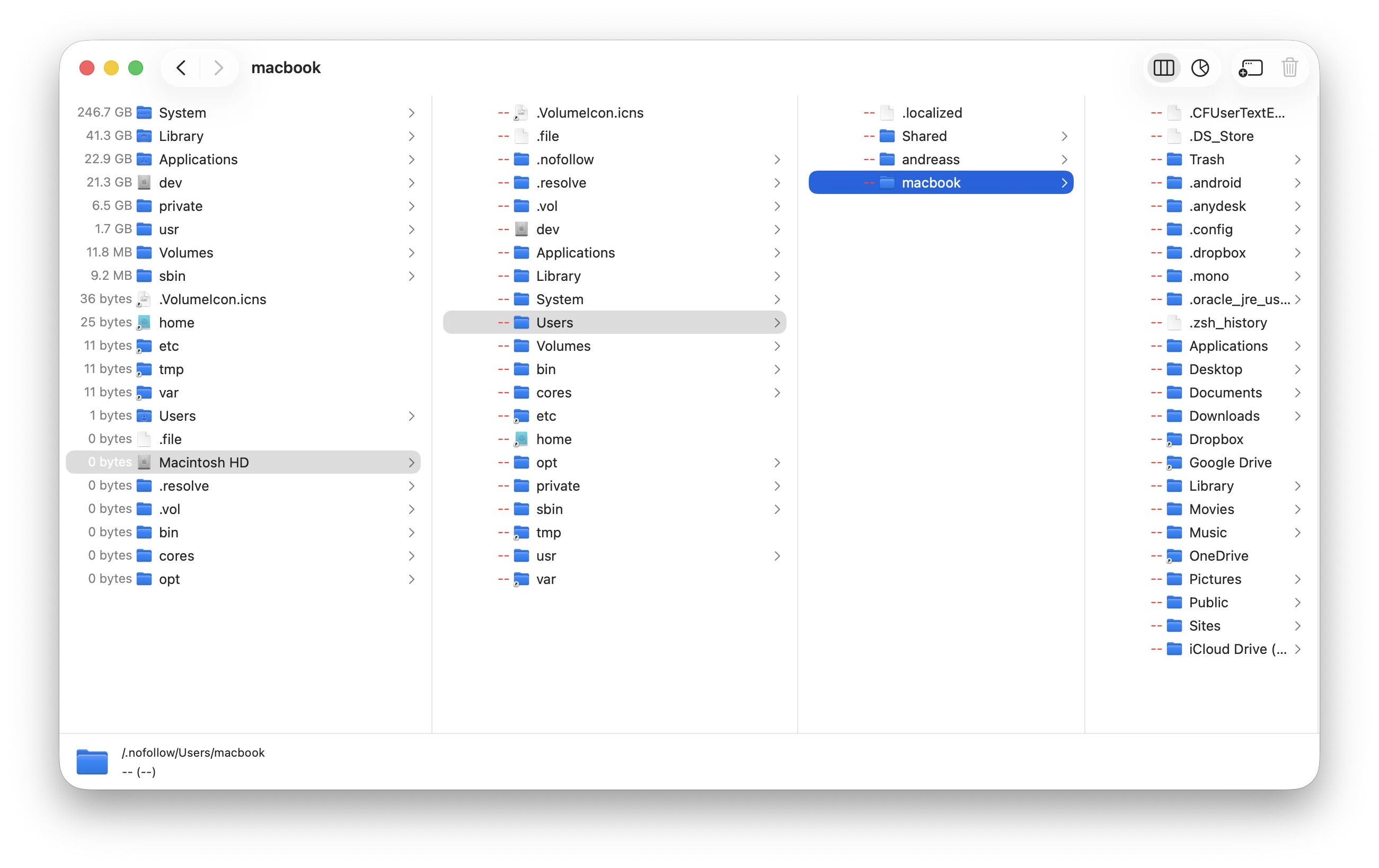
Keep important folders within reach.
Hunting for the same folder again? Save the folders and locations you use often so you can return to them quickly, and filter the current folder to find a file fast.
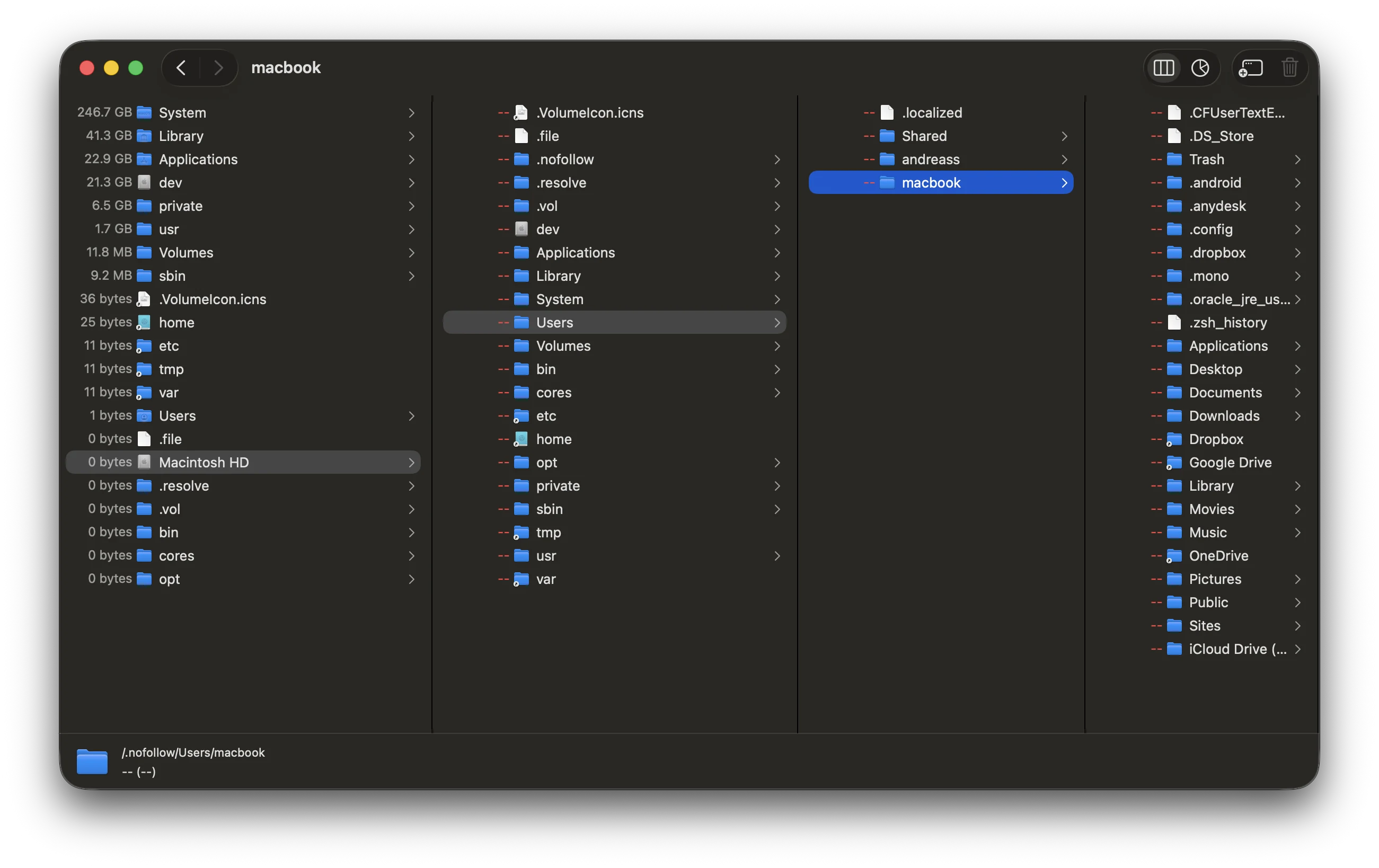
Size Browser
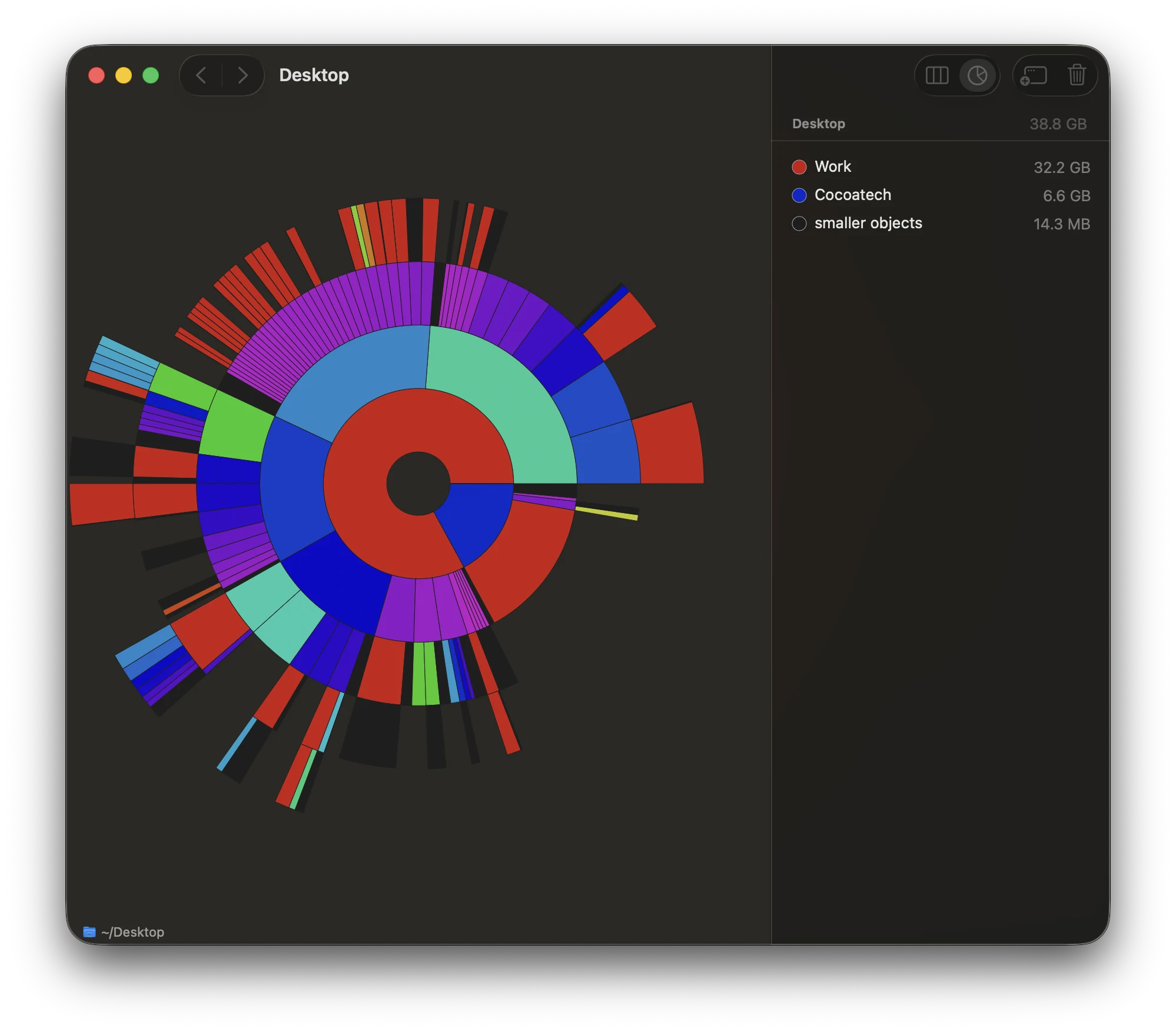
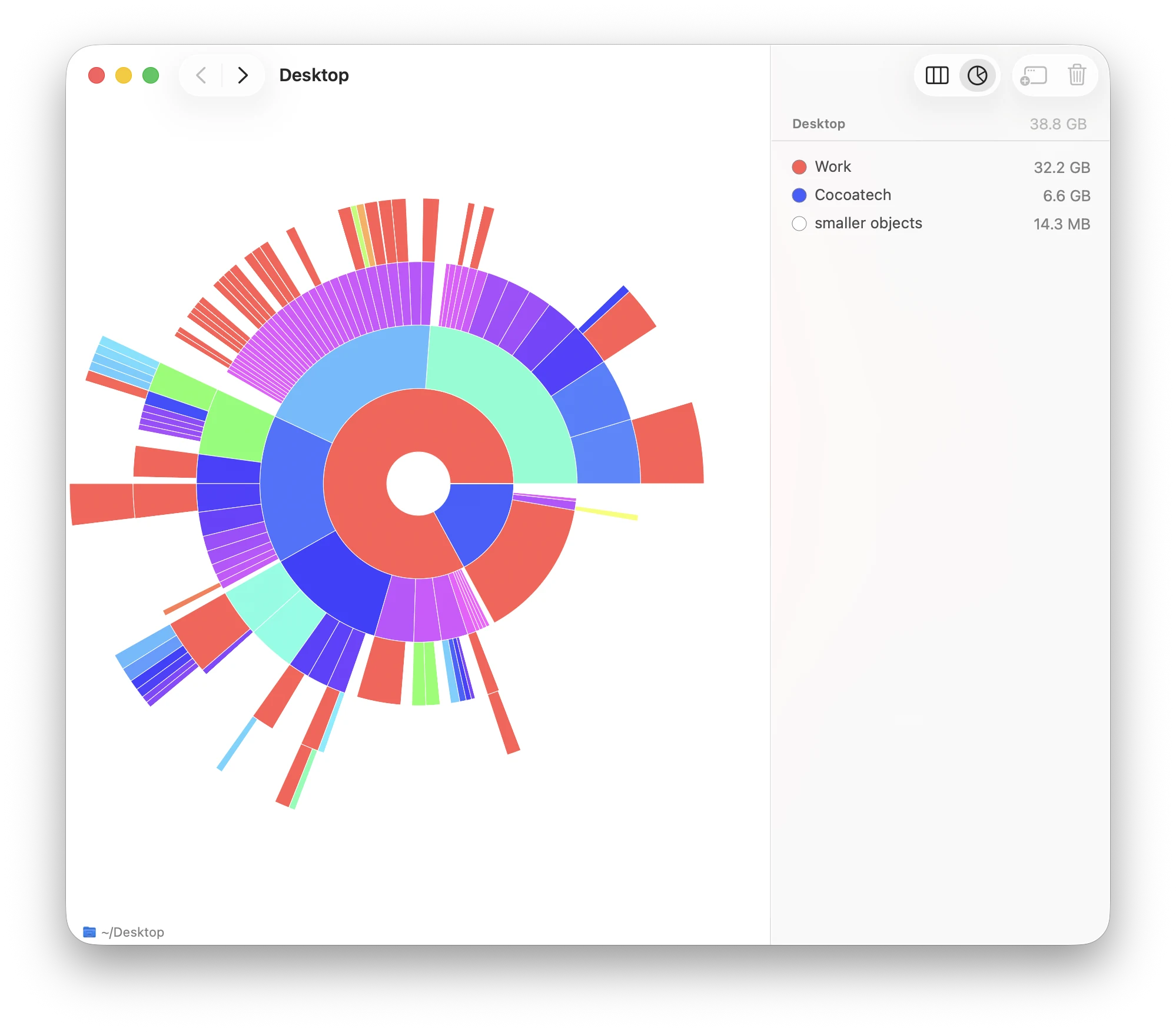
Find what takes up space.
Wondering where your storage went? Compare folder sizes, identify the largest files and folders, and clear out what you no longer need.
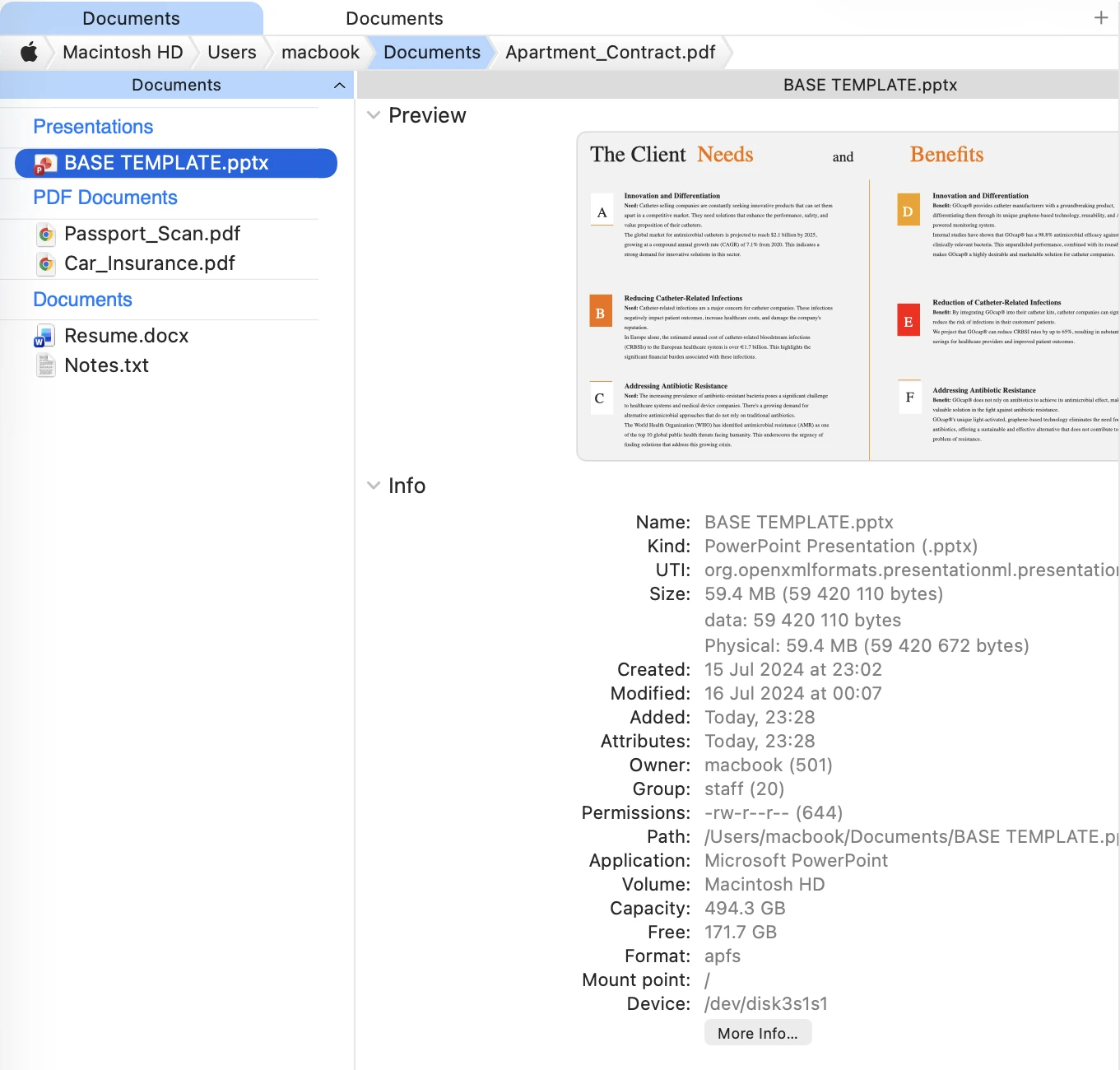
Preview Module
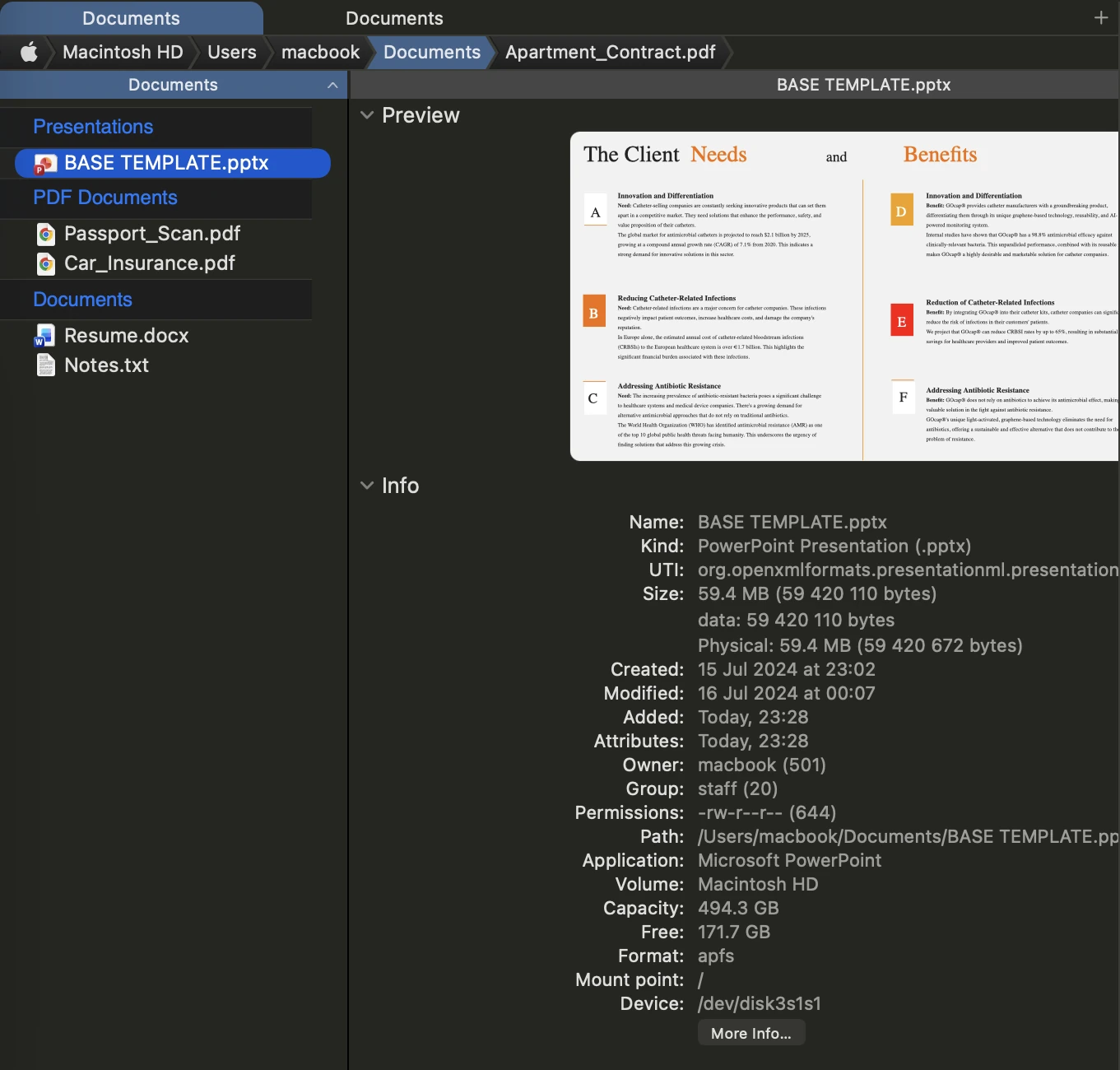
See files before you open them.
Need to check a file quickly? Keep Preview open to see images, documents, media, and code — with syntax highlighting for supported programming files — as you browse.
Advanced tools.
When the job requires more control, the specialist tools are already part of the same file workspace.
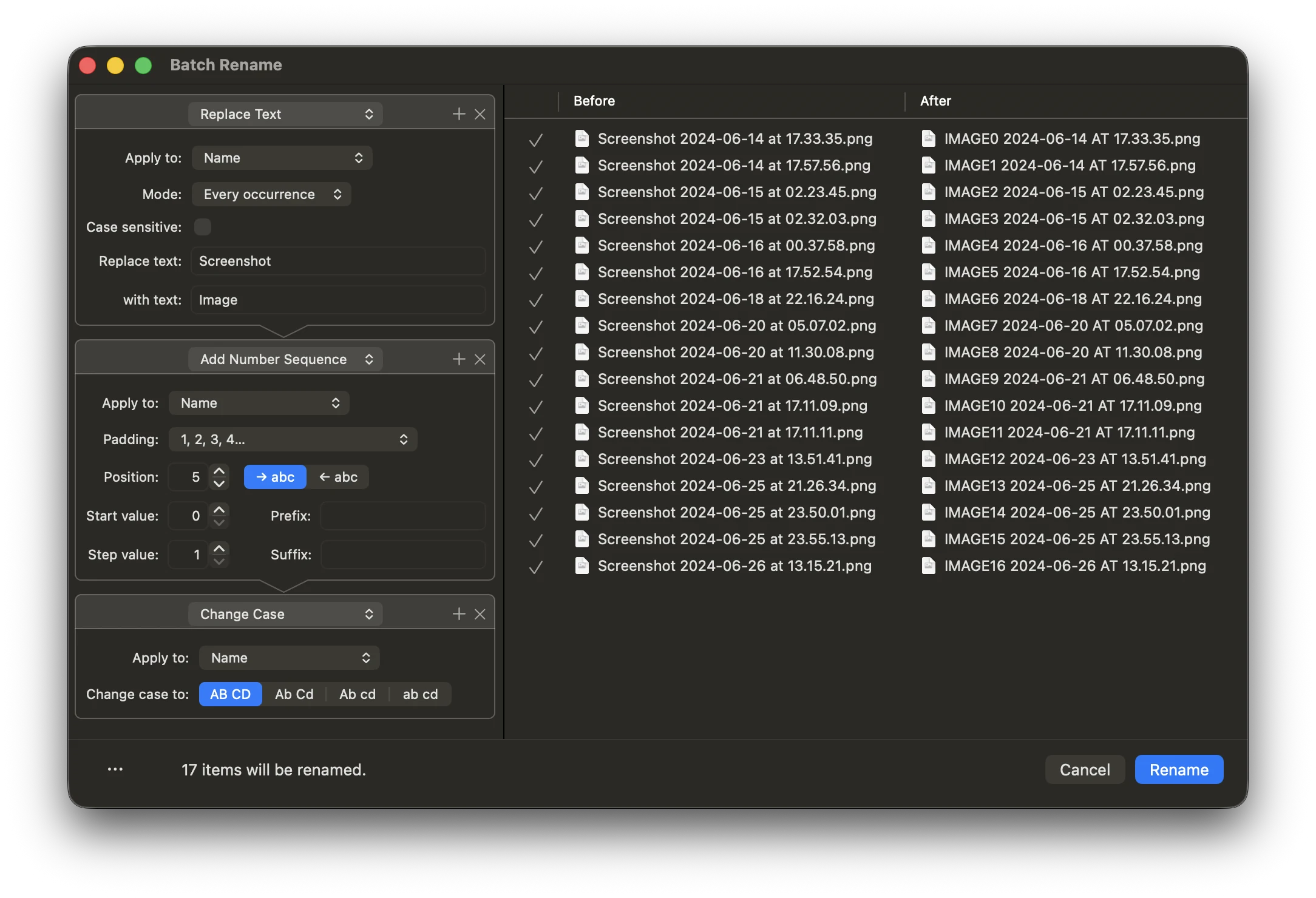
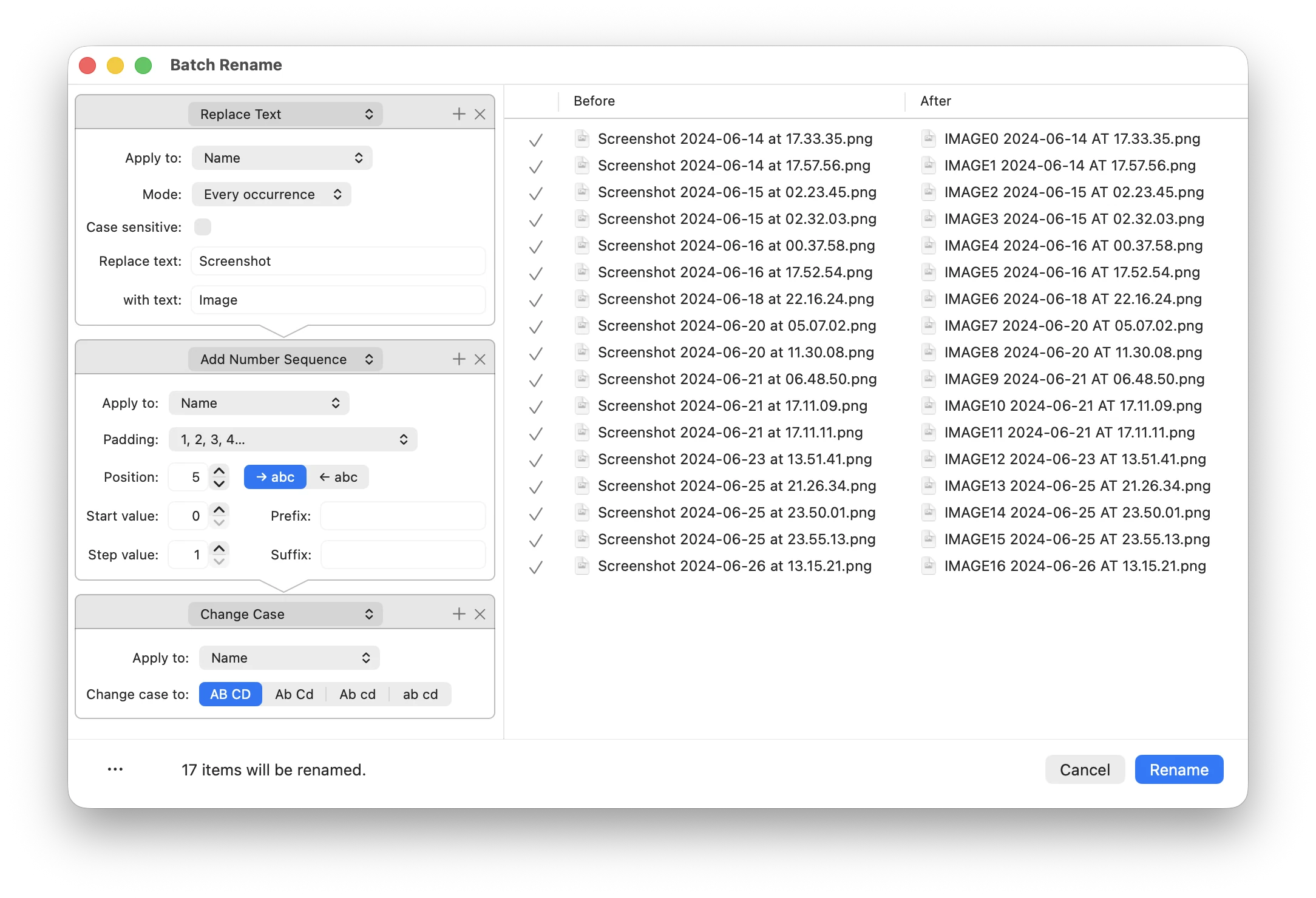
Batch Rename
Rename a whole project in one operation.
Turn hundreds of names such as IMG_4821 into clear, consistent filenames using rules you control.
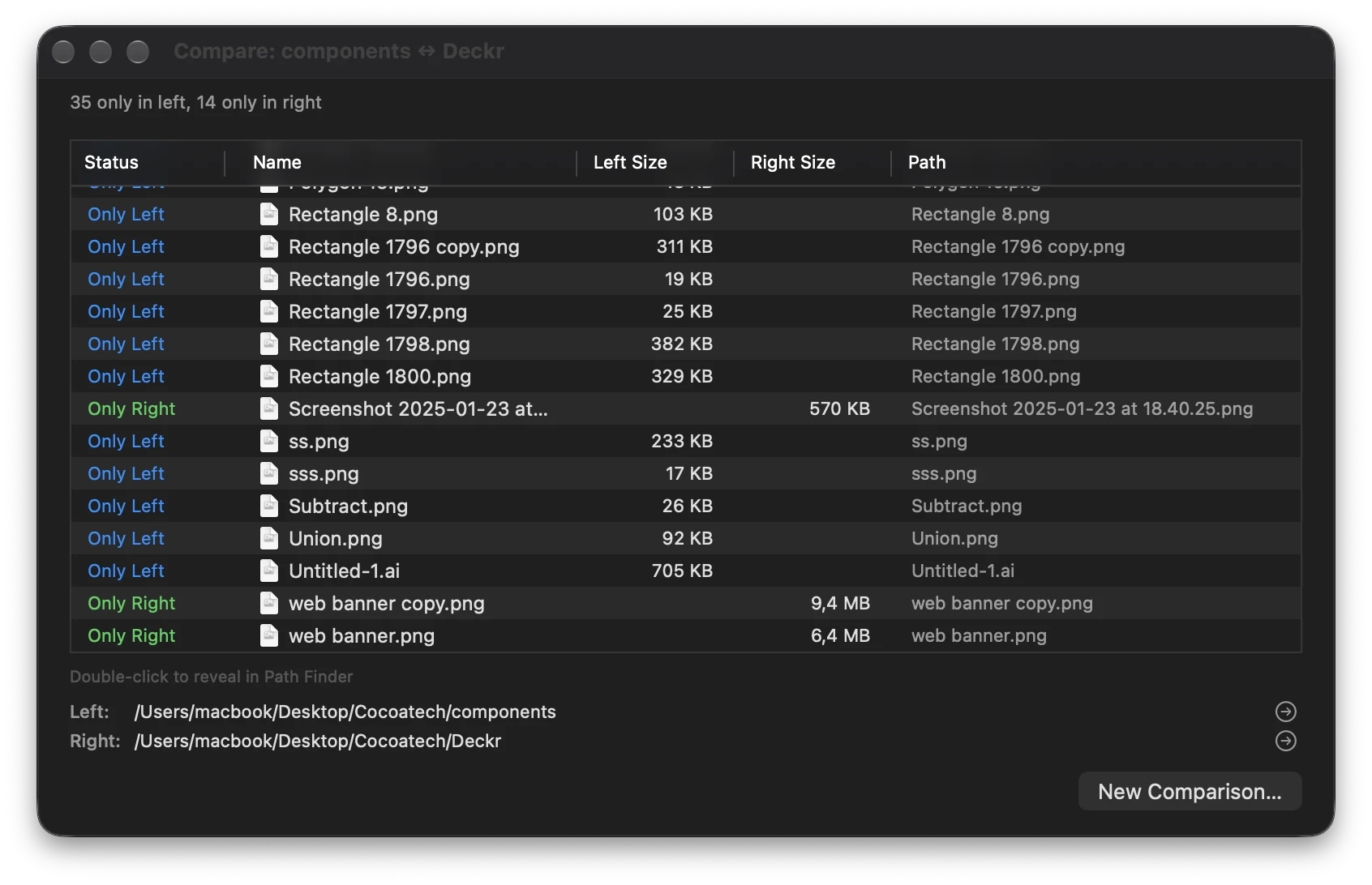
Folder Sync
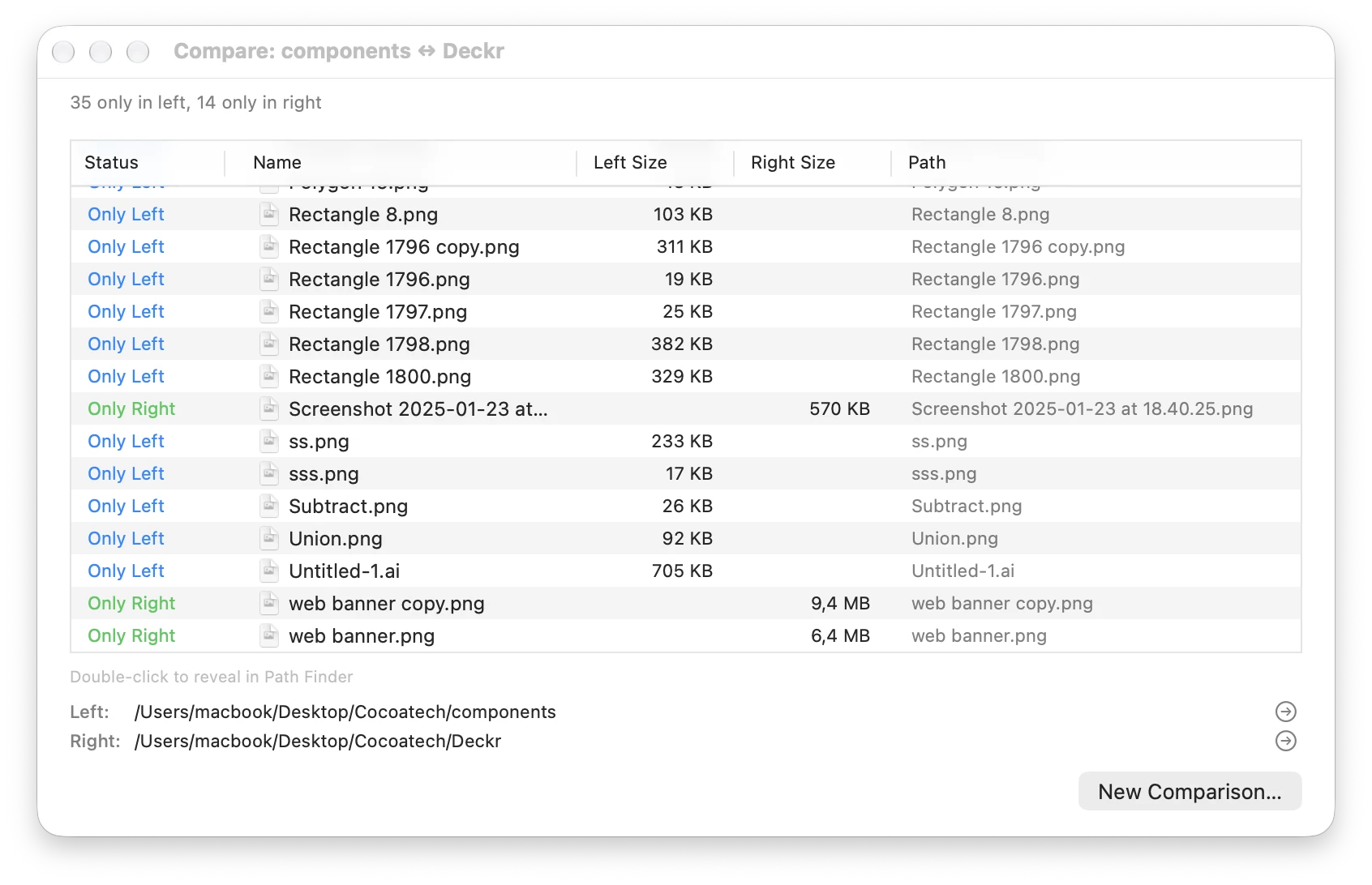
Compare folders.
See what changed before you copy, review the differences, and merge or synchronize folders only when you are ready.
Shortcuts · Automation · Terminal · Hidden Files · Administrator Access
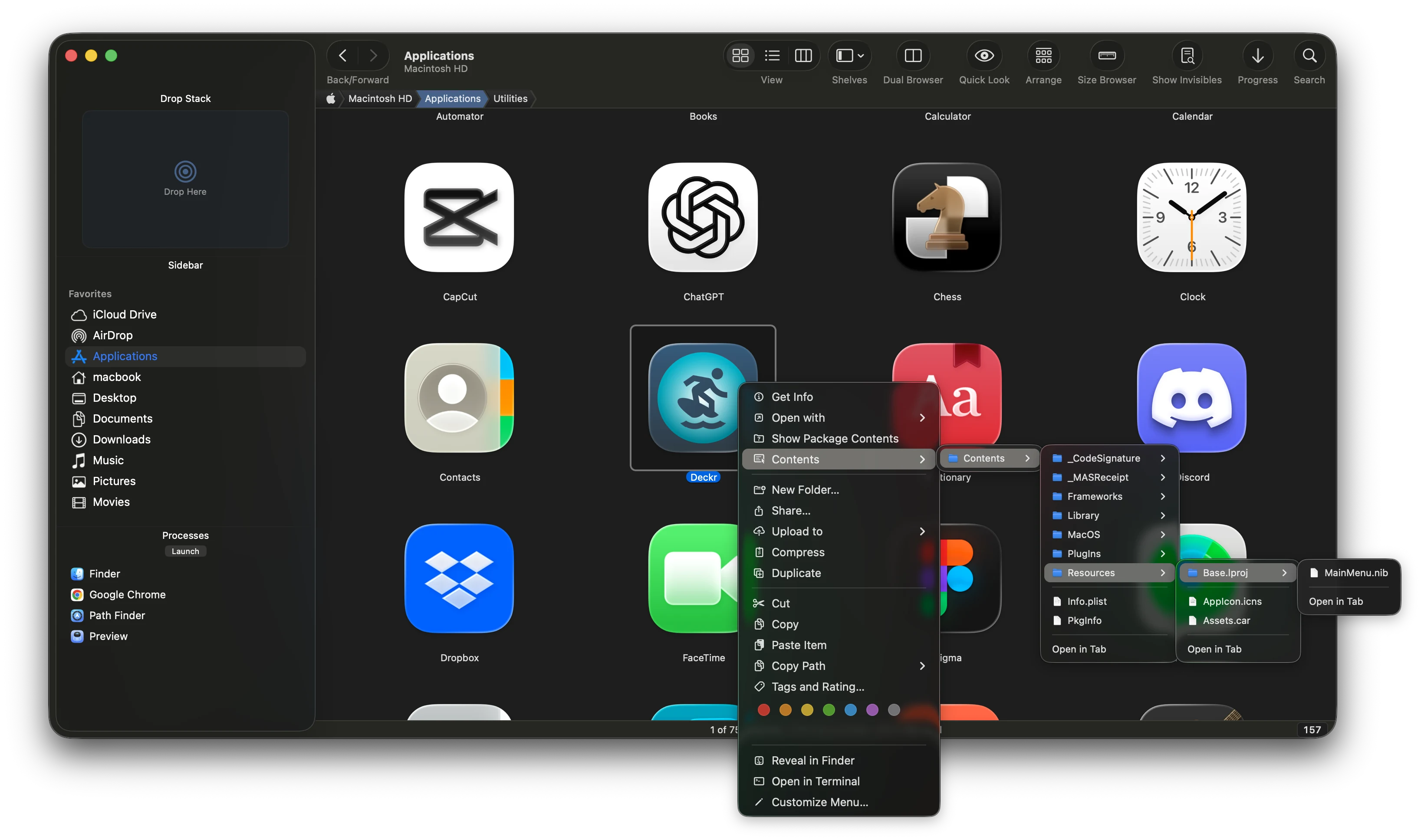
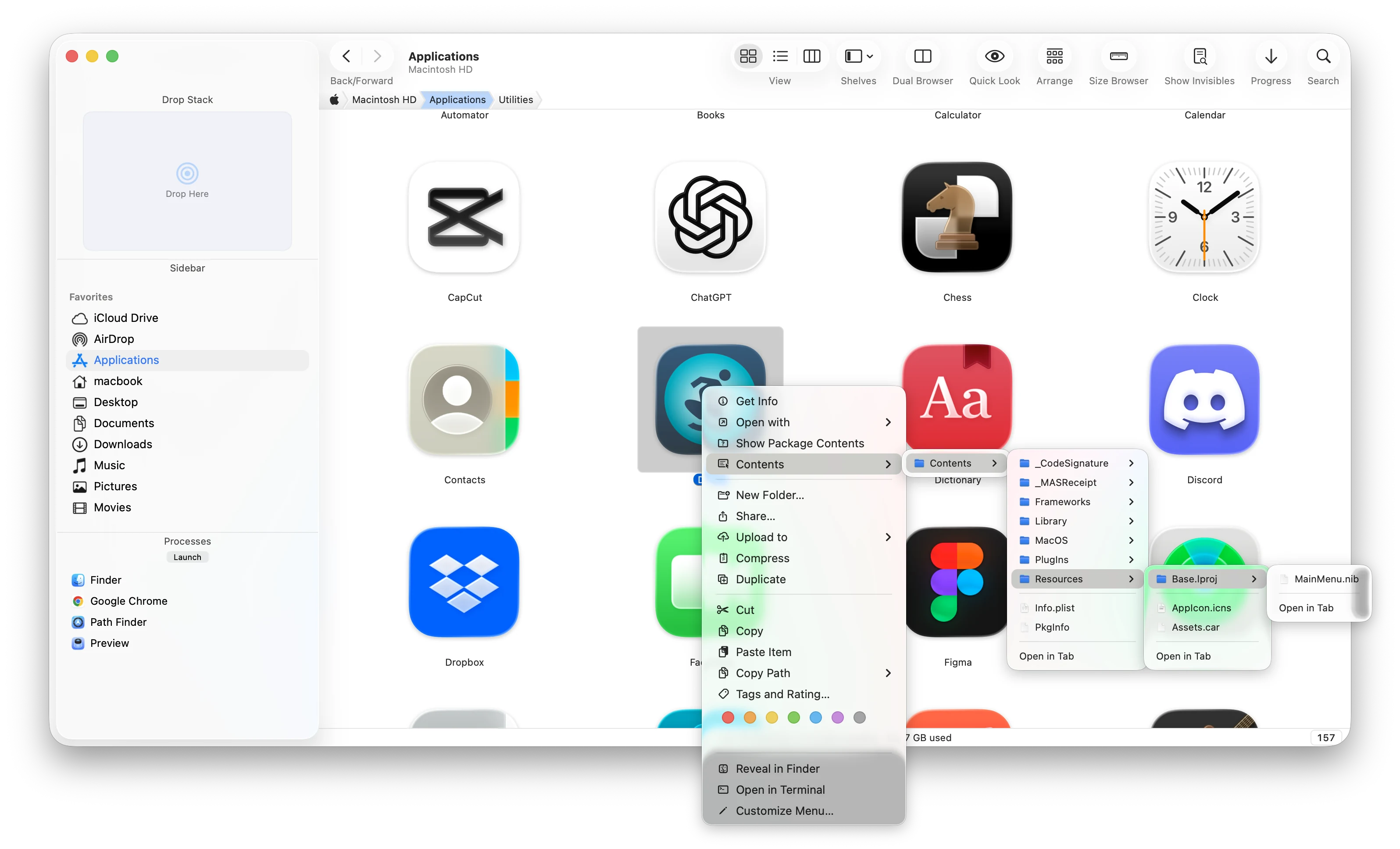
macOS power at your fingertips.
Need deeper access? Use keyboard shortcuts, automate repeated tasks, open a terminal in the current folder, reveal hidden files, remove files for good with Secure Delete, and work with administrator privileges when required.
- Name:
- Brand Deck.key
- Kind:
- Keynote Presentation
- Size:
- 59.4 MB (59 420 110 bytes)
- Created:
- 15 Jul 2025 at 23:02
- Modified:
- Today at 09:41
- Last Opened:
- Today at 09:12
- Owner:
- mac (501)
- Group:
- staff (20)
- Permissions:
- -rw-r--r-- (644)
- Path:
- /Users/mac/Documents/Brand Deck.key
- Application:
- Keynote
- Volume:
- Macintosh HD
- Capacity:
- 494.3 GB
- Free:
- 167.2 GB
- Format:
- APFS
- More Info…
Modules
Build the window around your workflow.
Need a different setup? Choose which modules appear around the file browser, use Smart Sorting to sort and group files by date, kind or tags, and arrange the main window around the way you work.
Get new posts by email
Release notes and Mac tips, now and then. No spam.